

What is Firebase AppCheck?
Firebase AppCheck is a security solution that helps protect Firebase apps from malicious attacks. It provides an easy way to verify the authenticity of requests made to backend services and prevent unauthorized access, abuse, and fraud.
Why do we use AppCheck and Firestore?
By integrating Firebase AppCheck with Firestore, we can ensure that only verified apps can read our collections. This means that any request to read data from our collections must include a valid Firebase AppCheck token that verifies the app’s authenticity. If the token is invalid or missing, the request will be rejected, and access to the collection will be blocked.
In our Flutter app, we use Firestore collections to specify what version of the app is allowed and what is blocked. This allows us to enforce version control for our app and ensure that users are always using a valid version. If we release a version with a serious bug, we have the possibility to block that version and force the user to download the latest version.
Problem to solve
AppCheck ensures the security of our Firestore collections, but it doesn’t consider emulators as legitimate devices. While it’s easy to manually add your device to the whitelist through the Firebase Console, this approach doesn’t work when running automated tests in a CI/CD environment. At Bygglet we rely on Bitrise to run our tests in our pipeline multiple times daily, but this approach should be platform agnostic.
In order to follow the guide, it is expected that you have a Flutter project that uses Firebase Firestore.
Installing and setup of AppCheck
If you haven’t already, let’s start by adding AppCheck as a dependency. You can do this by running the following command from the project root.
flutter pub add firebase_app_checkAfter installing AppCheck, you need to update your Firebase project configuration using the flutterfire configure command. If you’re not familiar with this process, you can refer to the following link for detailed instructions: https://firebase.google.com/docs/flutter/setup.
Next, you need to initialize AppCheck in your source code. Use the following code snippet for this purpose:
Future<void> _initializeAppCheck() async {
  await FirebaseAppCheck.instance.activate(
    appleProvider: AppleProvider.debug,
    androidProvider: AndroidProvider.debug,
  );
}
Note that you must call Firebase.initializeApp(...) before initializing AppCheck.
Retrieving our debug token
Let’s start our project in debug mode. In our logs we’ll something along the following lines.
03-15 15:15:00.672 6561 6607 D com.google.firebase.appcheck.debug.internal.DebugAppCheckProvider: Enter this debug secret into the allow list in the Firebase Console for your project: “YOUR_TOKEN_HERE”If you can’t find the log statement a simple way to get it is to run the following ADB command:
adb logcat | grep DebugAppCheck This will listen to the log stream, pass –d to the adb command to only grep the log dump
Retrieving the debug token on iOS is a bit more complicated. To do this, open your project in Xcode, locate the file FIRAppCheckDebugProvider.m, put a breakpoint on that line, right-click, select Edit breakpoint, then Action, and finally debug command. Enter po [self storedDebugToken] to retrieve the token.
Once you have the debug token, you can add it to Firebase via the GUI to validate it for future debugging purposes.
This is simple enough. However, a new unique token is generated every time you start the project. So how can we automate this for our test pipeline? Manually adding the debug token every time your test suite is running is tedious and not very scalable.
Let’s automate this process!
To obtain the token dynamically during runtime, we can parse the logs using ADB (note that this method is specific to Android). To simplify this process, we’ll add the logcat_monitor package.
flutter pub add logcat_monitorImport the package and create the following method.
Future<void> _getAndPostTokenFromLogStream() async {
  try {
    // Add listener to the log stream
    LogcatMonitor.addListen((line) async {
      // Find the line that contains the debug token
      if (line is String && line.contains('DebugAppCheckProvider')) {
        // Trim everything from the log line that isn’t the actual token
        String debugToken = line.split(':').last.trim();
        // POST the token, implementation follows below
        _postDebugToken(token: debugToken);
      }
    });
  } on PlatformException catch (e, st) {
    print('Failed to read ADB logstream', $e, $st);
  }
  await LogcatMonitor.startMonitor("*.*");
}
Now we have the possibility to parse the token at runtime. Let’s implement the POST method.
Future<String> _postDebugToken({required String token}) async {
  // Obtain client authenticated with a Firebase ServiceAccount, more details below.
  AuthClient client = await obtainAuthenticatedClient();

  String API_ENDPOINT =
      'https://firebaseappcheck.googleapis.com/v1beta/{parent=projects/*/apps/*}/debugTokens';
  // Payload for the request. We’ll hardcode the display name for now.
  String payload = jsonEncode(
      <String, dynamic>{"displayName": 'TEST_PIPELINE_TOKEN', "token": token});

  // POST request to the AppCheck API.
  Response response = await client.post(Uri.parse(API_ENDPOINT), body: payload);

  if (response.statusCode == 200) {
    print('Successfully posted debugToken');
  } else {
    print('Failed to POST debugToken');
    print(response.body);
  }

  client.close();
  // Small utility method for parsing the token
  return _retrieveCreatedTokenId(response.bodyBytes);
}

String _retrieveCreatedTokenId(Uint8List responseBytes) {
  dynamic responseBody = json.decode(utf8.decode(responseBytes));

  String parsedToken = responseBody['name'] as String;

  return parsedToken.split('/').last;
}
To make the POST request work, you need to setup a Firebase Service Account with “Cloud Datastore” and “Firebase App Check Admin “ privileges. Since the authentication is done via OAuth2 which is not supported out of the box in Dart, you also need to install the following package that provides support for obtaining OAuth2 credentials to access Google APIs.
flutter pub add googleapis_authAfter you have created a service account with the needed rights you can retrieve the authentication credentials for the service account. You can find them in the Google Cloud Console under permissions in the IAM & Admin section.
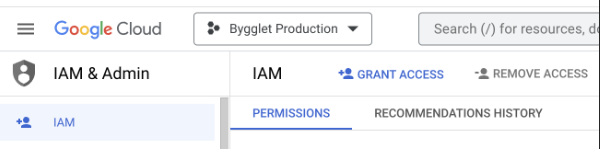
These will be needed when posting the token via the AppCheck API (documentation can be found here).
Future<AuthClient> obtainAuthenticatedClient() async {
  ServiceAccountCredentials accountCredentials =
      ServiceAccountCredentials.fromJson({
    // Credentials from your service-account
    "private_key_id": 'yourPrivateKeyId',
    "private_key": 'yourPrivateKey',
    "client_email": 'yourClientEmail',
    "client_id": 'yourClientId',
    "type": 'type',
  });

  return await clientViaServiceAccount(accountCredentials, [
    // Scopes for the AuthClient
    // We need both of these for POST requests
    'https://www.googleapis.com/auth/firebase',
    'https://www.googleapis.com/auth/datastore'
  ]);
}
After the pipeline is finished with the test suite and the token is not needed anymore, it’s important to delete the token.
Future<void> _deleteDebugToken(String tokenId) async {
  AuthClient client = await obtainAuthenticatedClient();

  String API_ENDPOINT =
      'https://firebaseappcheck.googleapis.com/v1beta/{name=projects/*/apps/*/debugTokens/*}))';
  Response response = await client.delete(Uri.parse(API_ENDPOINT));
  client.close();

  if (response.statusCode == 200) {
    print('Successfully deleted token');
  } else {
    print('Failed to delete token');
  }
}
Conclusion
By following the above steps, you can integrate the AppCheck feature in your automated test pipeline and make sure that this critical part of the application works when making changes in the code base.